Web Checker: Ways to Use It
Web Checker visits the pages you want at a time you choose and gathers only what changed into one set of results. Here are some ways to replace a daily round of checking with a single read-through.
Intro video
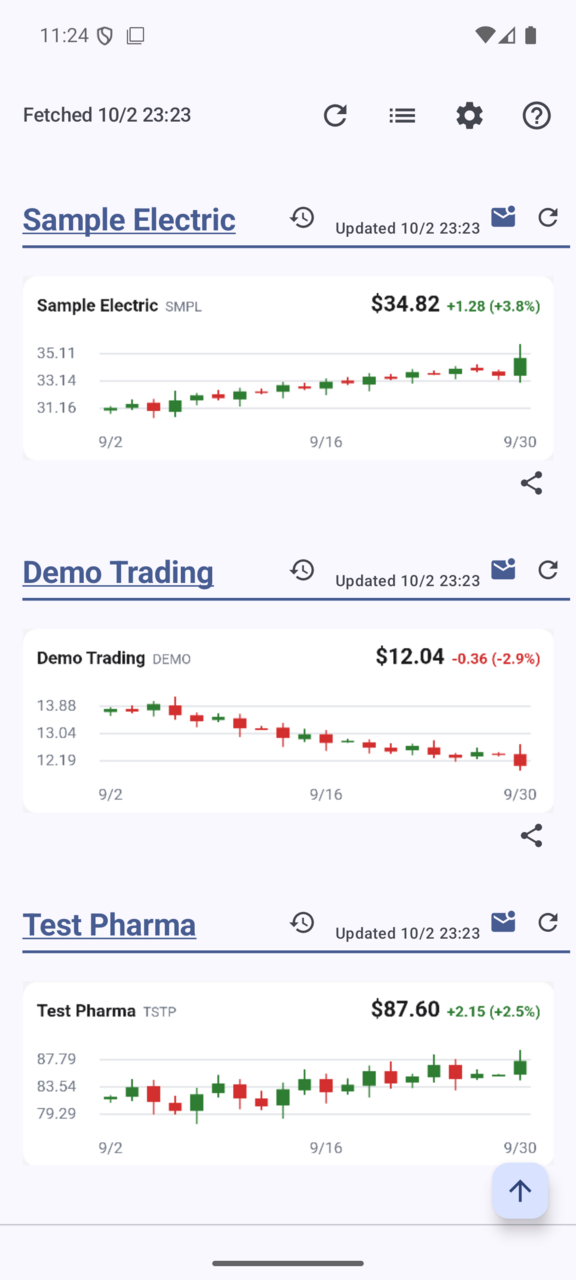
Investing: check charts and indexes together before the market opens
Who it suits
Individual investors and anyone who follows the market between other work
Sources to add
- The chart page for each stock you follow (one source per stock)
- A list of exchange rates and indexes
- Your holdings page at your broker (a page behind a login)
Tips
- For charts, tap the chart and turn on "Keep it as an image". Lines and candlesticks are captured as they look and compared with last time
- Set the "Fetch time" before the open (for example 8:30) and everything is ready by the time you look
- For stocks you also want after the close, use "Set when to check" on that source and pick "A separate time for this source"
- For pages behind a login, tap + then "Log in first", sign in as usual and tap "I'm in". Your password is never passed to the app
Parents: never miss a school notice
Who it suits
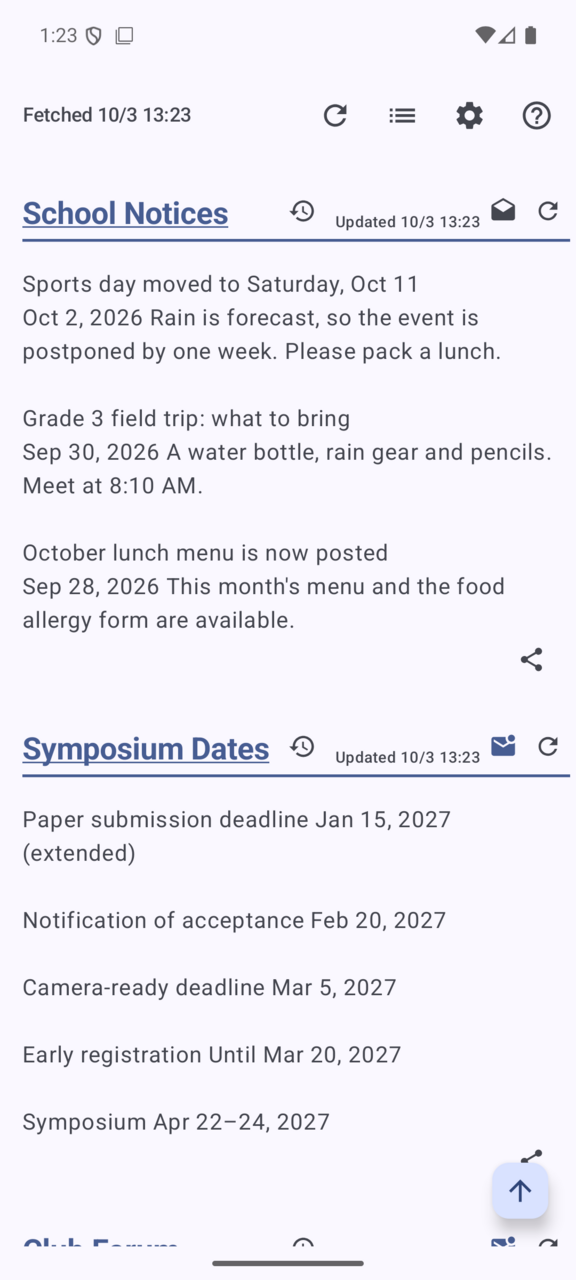
Parents who check school, nursery or cram school notices every morning
Sources to add
- The school's notice board or class newsletter page
- The nursery's or tutoring school's contact page (often password protected)
- Lunch menus and event calendars
Tips
- If a small window asks for a user name and password before the page opens, use "Log in first", type them in and tap "Send". For this kind of sign-in only, the password is kept locked on your device so the app can sign in again on each check
- On a list of notices, tap one notice when picking. Then only newly added notices show up as new
- Set the "Fetch time" before the morning rush (for example 6:30) to read about postponements or things to bring before you leave
- Turn on "Notify when fetching ends" in Settings to get a notification only on days when something new arrives
Collectors: catch restocks, pre-orders and new releases
Who it suits
People who collect models, figures, games or books
Sources to add
- A shop's restock and new arrivals page
- A maker's list of pre-order and release dates
- Magazine covers or lists of new books
Tips
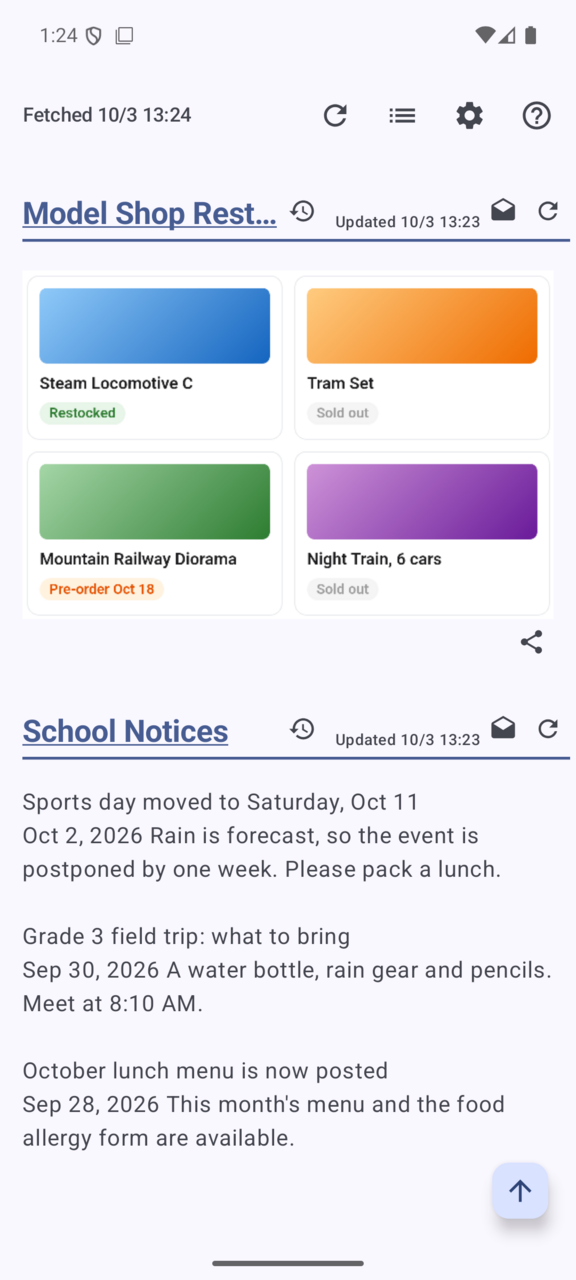
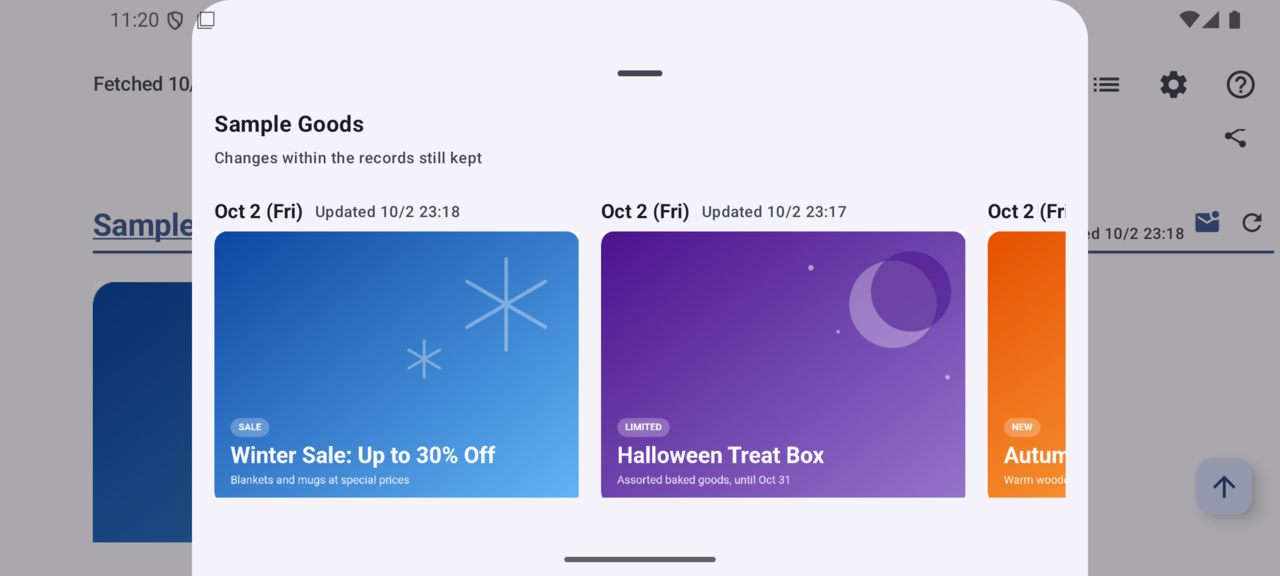
- If stock status is shown only as images or colors, tap the area with the products and turn on "Keep it as an image". Even a one-pixel change is caught
- If the area includes a clock or moving ads, every check will count as changed. Narrow it to just the products with −In
- For lists that need a "Show more" tap, tap that button while picking and then "Use this page". The app remembers the tap and repeats it on every check
- To check more often around a pre-order date, use "Set when to check" on that source and pick "Repeat at a fixed interval"
Daily life: weather, train status and local news in one morning read
Who it suits
Commuters and students, and people keeping an eye on the area where their family lives
Sources to add
- The weather forecast for your area
- Service status for the lines you use
- Notices from the town office, changes to trash collection
Tips
- Set the "Fetch time" about 15 minutes before you wake up. To start on time even while the screen is off, tap the red text in Settings and allow "Alarms & reminders"
- Use "Move up" in the source list to put the results in the order you read them
- Adjust the "Text size" in Settings. Handy when setting it up on a family member's phone
- If a page's content cannot be fetched at all, register it with "Just open this page". It appears in the results as a link
Work: keep a regular eye on competitors' prices and campaigns
Who it suits
Freelancers and people in marketing or sales at small companies
Sources to add
- A competitor's pricing or plans page
- The campaign banner on a competitor's home page
- Lists of public notices or tenders
Tips
- Capture campaign banners with "Keep it as an image". Tap "History so far" next to the item to see the images stacked by date
- Keep more "Days of past results to keep" in Settings to look back at how the messaging changed over the seasons
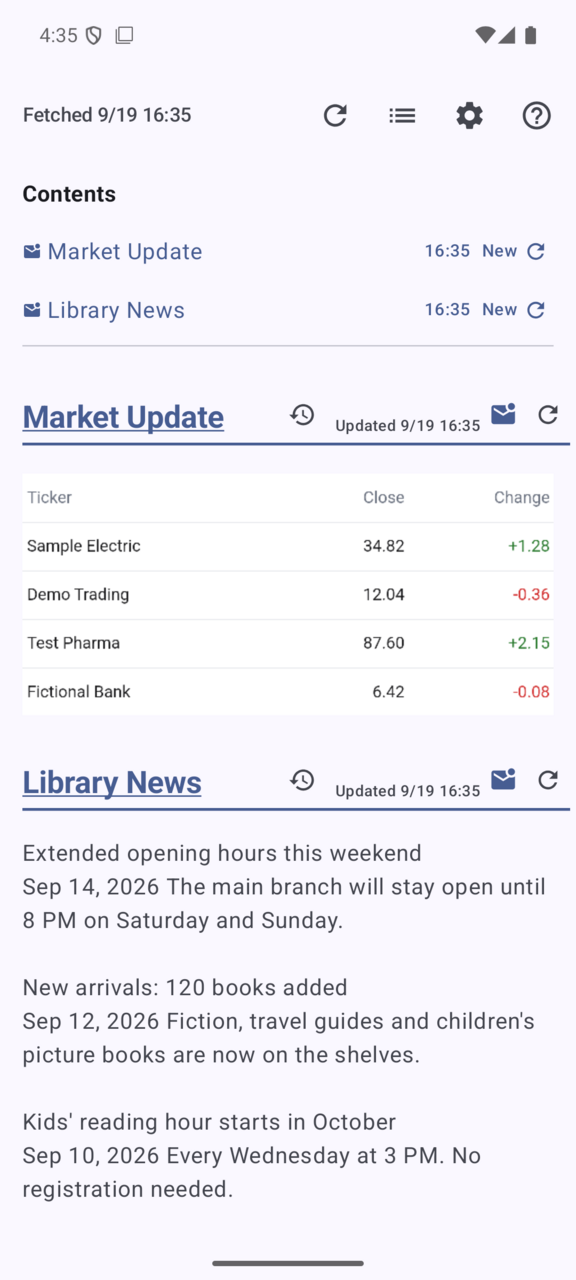
- On a text pricing page, only the differences from the previous day are highlighted. In the history view, swipe sideways to compare with the previous check
- "Save data" in Settings writes your sources and settings to a file. Useful when changing phones or handing the same setup to a colleague
Study and research: never miss an extended deadline or a new listing
Who it suits
Students, researchers and people studying for a certification
Sources to add
- A conference's "Important dates" page
- New arrivals at journals or the library
- University notices and class cancellations (often behind a campus login)
Tips
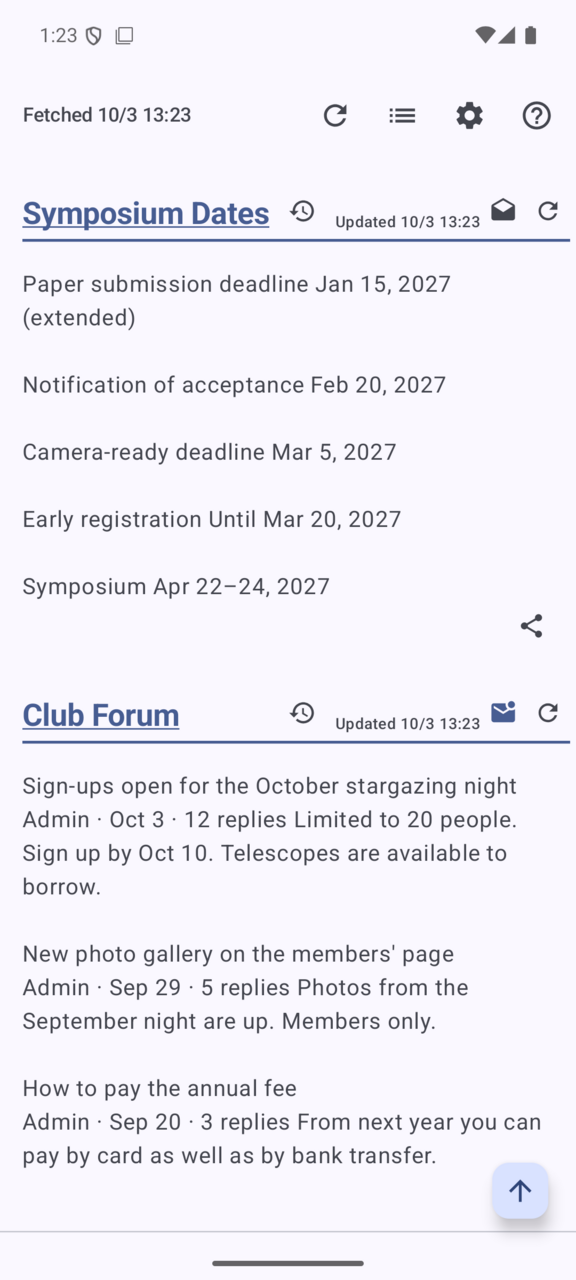
- On a table of dates, tap one row when picking so each row is compared on its own. Only the row with the extended deadline stands out as updated
- If a page is empty right after it opens and fills in a moment later, "Try" shows 0 items as is and a number after rendering. Turn on "Render before fetching" and register
- If a source fails, the reason appears in red on its row. Use the small retry button on its line in the contents to fetch that one source again
- When a campus login expires, you get a "You've been logged out of a site" notification. Sign in again from the lock button in the source list
Communities: pick up announcements on members' pages and forums
Who it suits
Fan club and club members, and people following event announcements
Sources to add
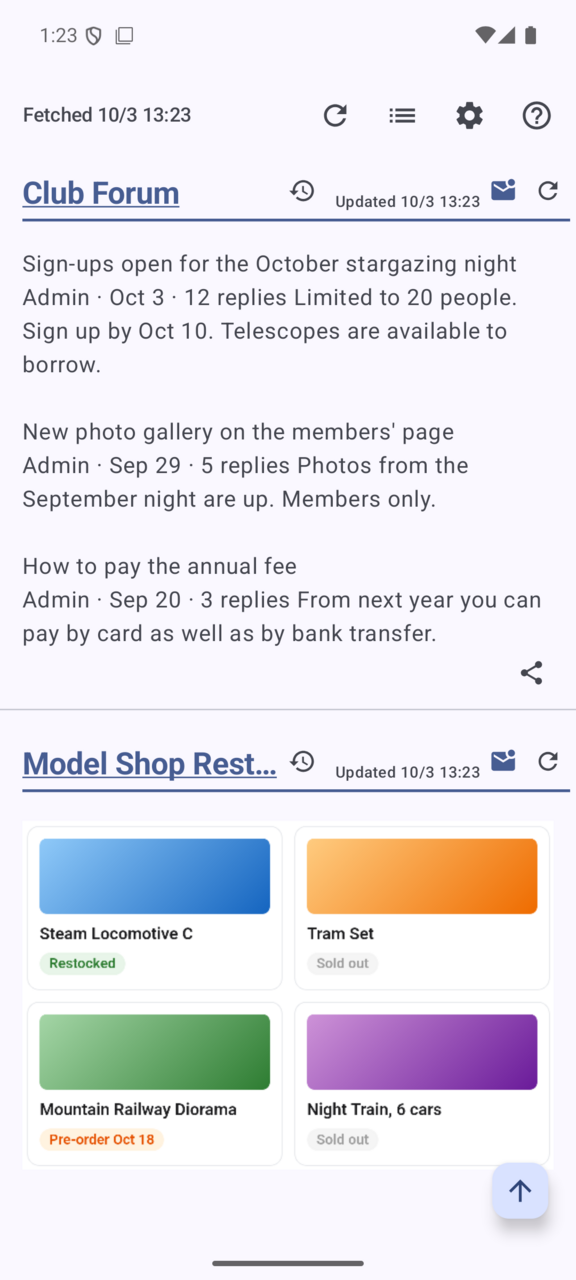
- The "Announcements" board of a club forum
- A fan club's members-only page (login required)
- Event announcements and ticket sign-up pages
Tips
- For members' pages, sign in with "Log in first" before picking. From then on, every check goes in signed in
- For forums whose content is built with JavaScript, "Try" suggests turning on "Render before fetching"
- If you need to go from the forum's front page to a thread, follow the link while picking and then tap "Use this page". The app then goes straight to that page
- The share button sends a change to X or another app. For pages you view signed in, you are asked to check that no personal details are visible before sending
Privacy first: keep what you watch to yourself
Who it suits
Journalists, legal and IP staff, and anyone who would rather not let others know which pages they watch
Sources to add
- Press releases from organizations you are looking into
- Patent and trademark gazettes, or terms-of-service pages
- Pages about personal interests you would rather keep private
Tips
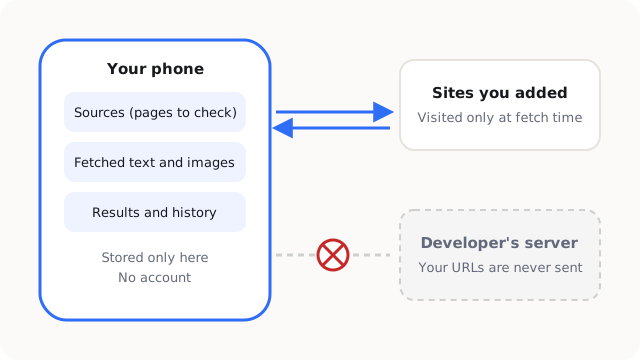
- Web Checker needs no account. Fetched content and your sources stay on your device only. The URLs you watch are never handed to an outside server
- Pages are fetched only during a check, and only from the sites you added yourself (apart from this, Google AdMob connects to show ads)
- When changing phones, use "Save data" to write a file and move it yourself. Login details and fetched items are not included
- To stop using it, uninstall the app and everything it collected is deleted
How to add a source
- In the source list, tap + at the bottom right and paste the page's URL
- Tap "Open the page and pick", then "Use this page" on the page you want
- Tap the part you want to watch (if the range is off, adjust it with +Out / −In / ◀Prev / ▶Next)
- Tap "Try" to check how many items it finds, enter a "Name shown in the results" and tap "Register"
- Set the "Fetch time" in Settings (the gear). From then on, fetching happens automatically at that time
Before you use it
- For personal use only, within each site's terms of use. Some sites do not allow automated access to pages behind a login or for members only.
- Fetched content is intended as an aid to your own judgment, so the timeliness of the data is not guaranteed.
- All pages, company names and product names shown in these screenshots are fictional.
Free on Google Play. No account needed.
Get it on Google Play →